Settings
The settings sidebar slides in from the left, opened with the button at the left end of the top bar. It has three tabs — Fretboard, Audio, and Icon — and two rows below them: Fretling Pro and About Fretling. It reopens on the tab you left it on.
Not everything lives in here. The settings you change constantly sit on the chip bars that bracket the neck: marker display above it, Visual Groupings below it. The sidebar holds the things you set once and leave alone.
Fretboard tab
Three groups, some of which appear only in the modes they apply to. Options that do not apply right now are dimmed rather than hidden, so the sidebar does not rearrange itself under you.
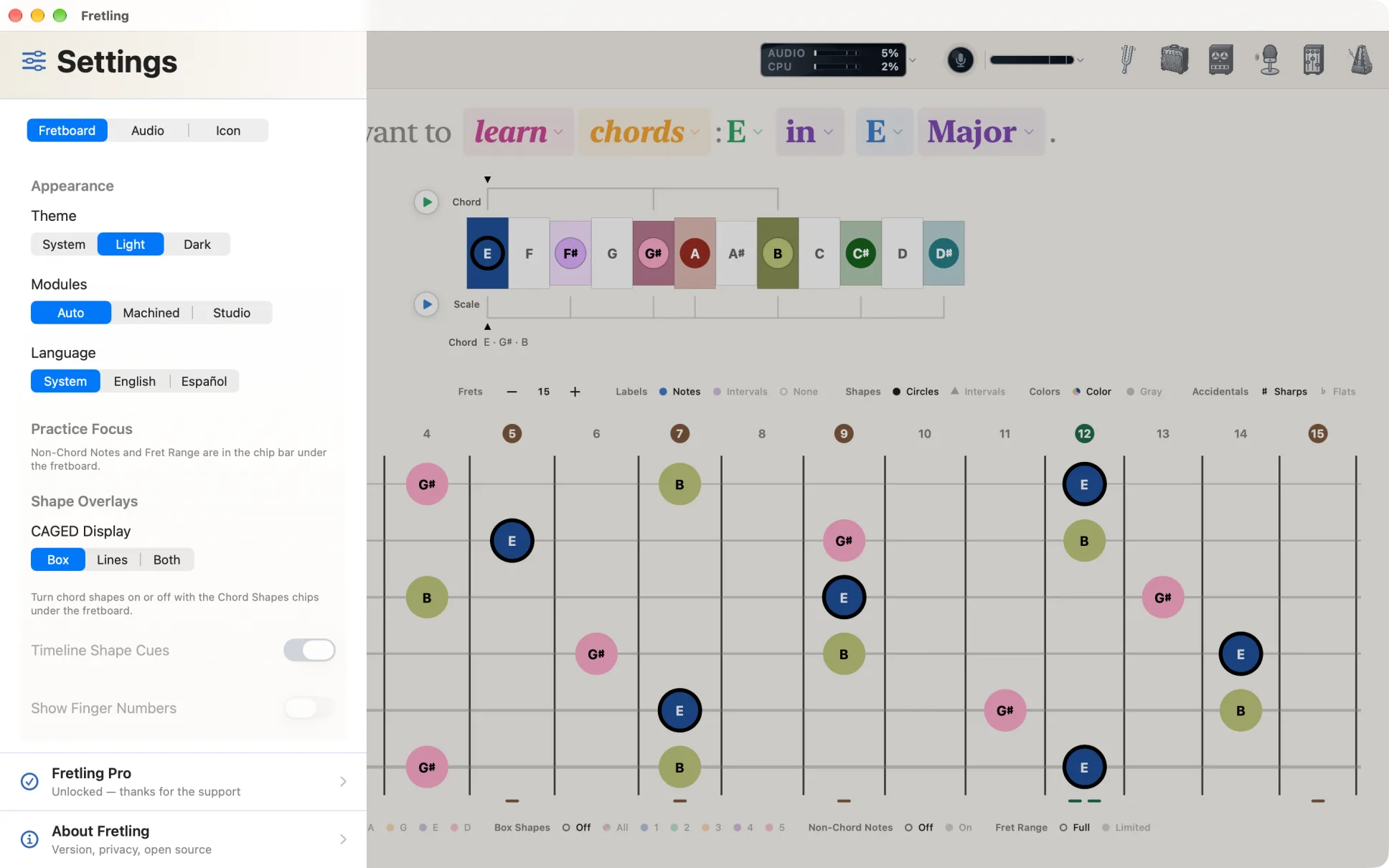
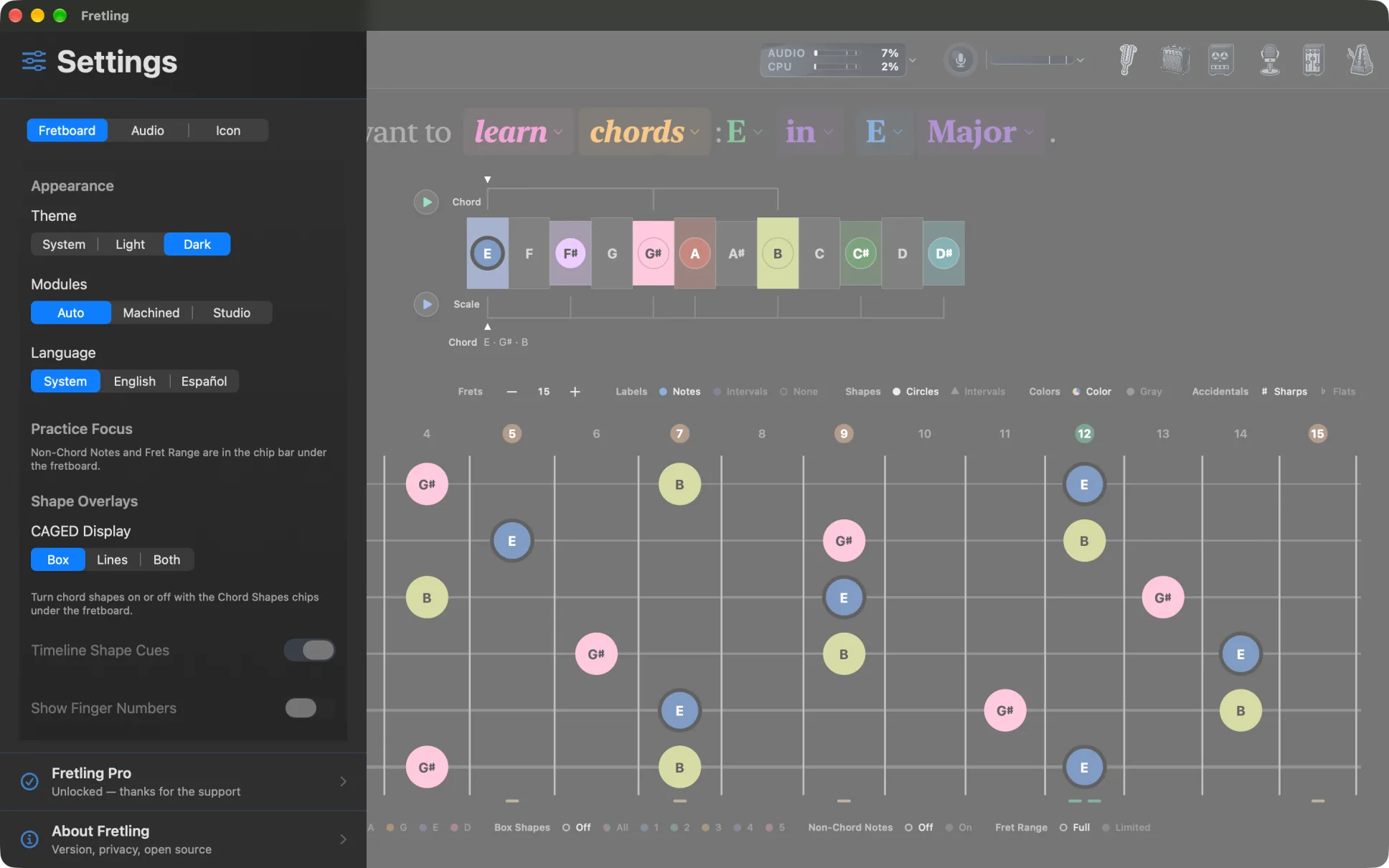
Appearance
| Setting | Options | Description |
|---|---|---|
| Theme | System (default) / Light / Dark | Follow the device appearance, or pin Fretling to light or dark. |
| Modules | Auto (default) / Machined / Studio | How the floating practice tools are drawn. Auto gives the light canvas the Machined panel and the dark canvas the Studio one; pin either to keep it everywhere. |
| Language | System (default) / English / Español | Follow the device language, or pin Fretling to English or Spanish. A change takes effect when the app next opens: Fretling offers to relaunch right away on Mac (Relaunch Now) or to quit on iPad (Quit Fretling), or choose Later and it switches on its own the next time you open it. The caption under the row says so plainly: Applies the next time Fretling opens. |
Marker settings are not here — labels, shapes, colors and accidentals all live on the marker display bar above the neck, where they stay visible while you play.
Practice Focus
| Setting | Options | Description |
|---|---|---|
| Show Triad Lines | Toggle | Triads mode only. Joins each triad voicing with a line. |
Non-Chord Notes and Fret Range are not in the sidebar. They are chips in the Visual Groupings bar under the neck: both are flipped mid-practice and both change what the neck shows, so they belong beside it.
Shape Overlays
| Setting | Options | Description |
|---|---|---|
| CAGED Display | Box (default) / Lines / Both | How a CAGED shape is drawn: region outline, connecting lines through its notes, or both. |
| Timeline Shape Cues | Toggle | Also marks the shape's tones on the timeline. Requires chord shapes to be on. |
| Show Finger Numbers | Toggle | Prints finger numbers on chord shapes. Requires chord shapes to be on. |
| CAGED Interaction | Coexist (default) / Exclusive / Replace CAGED | Chords mode. What happens when chord shapes and CAGED are both on — draw both, let shapes take over while they are on, or have shapes replace CAGED entirely (which also removes the CAGED chips from Visual Groupings). A line under the menu says what the current choice does. |
Chord shapes themselves are switched on and off in the Chord Shapes group of the Visual Groupings bar under the neck, not here — it is an overlay you reach for often, so it sits beside the fretboard it changes. The two rows above follow it and dim while it is off.
The whole Shape Overlays group is dimmed while you are identifying a chord — there is no key to lay a shape against.
Audio tab
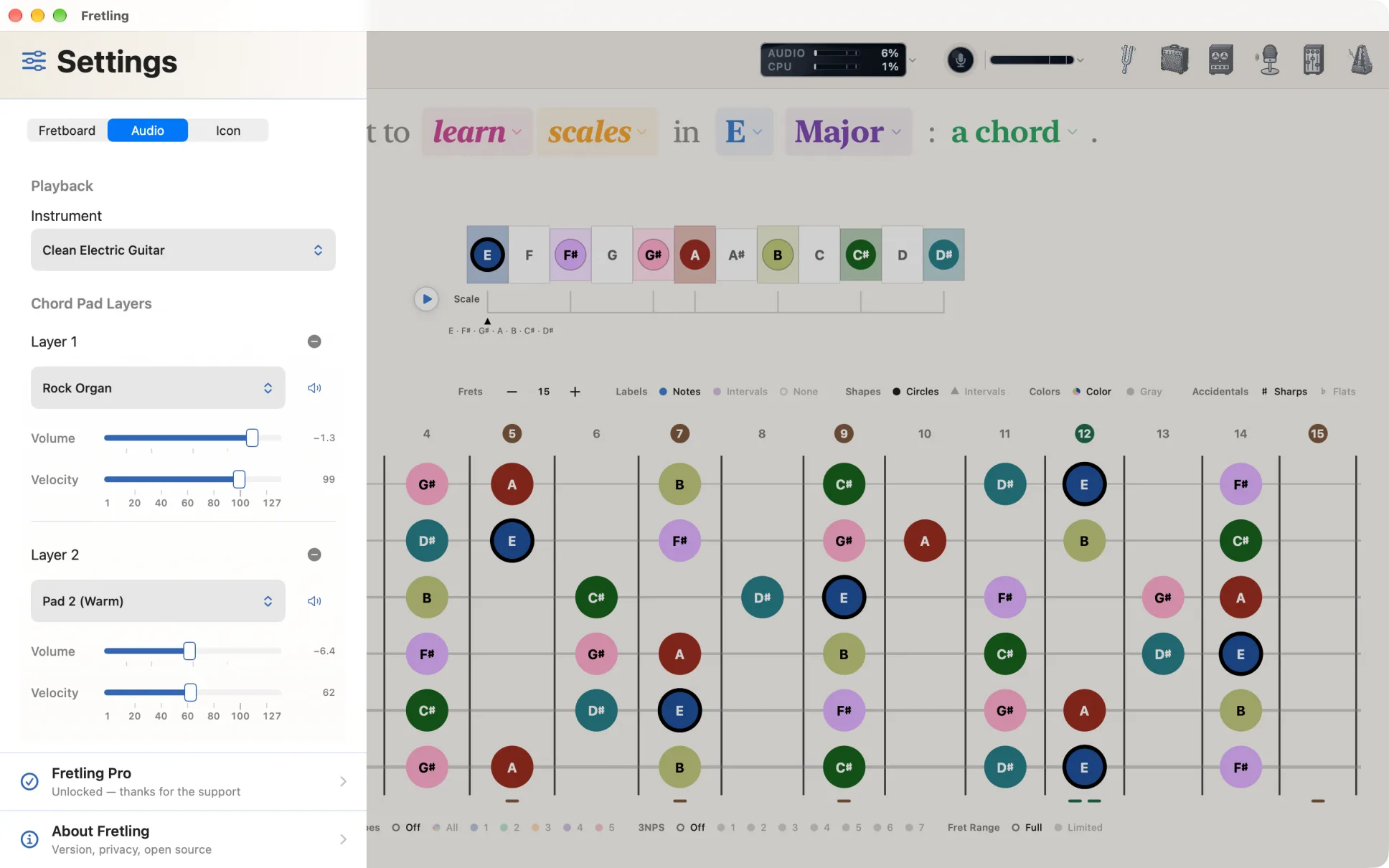
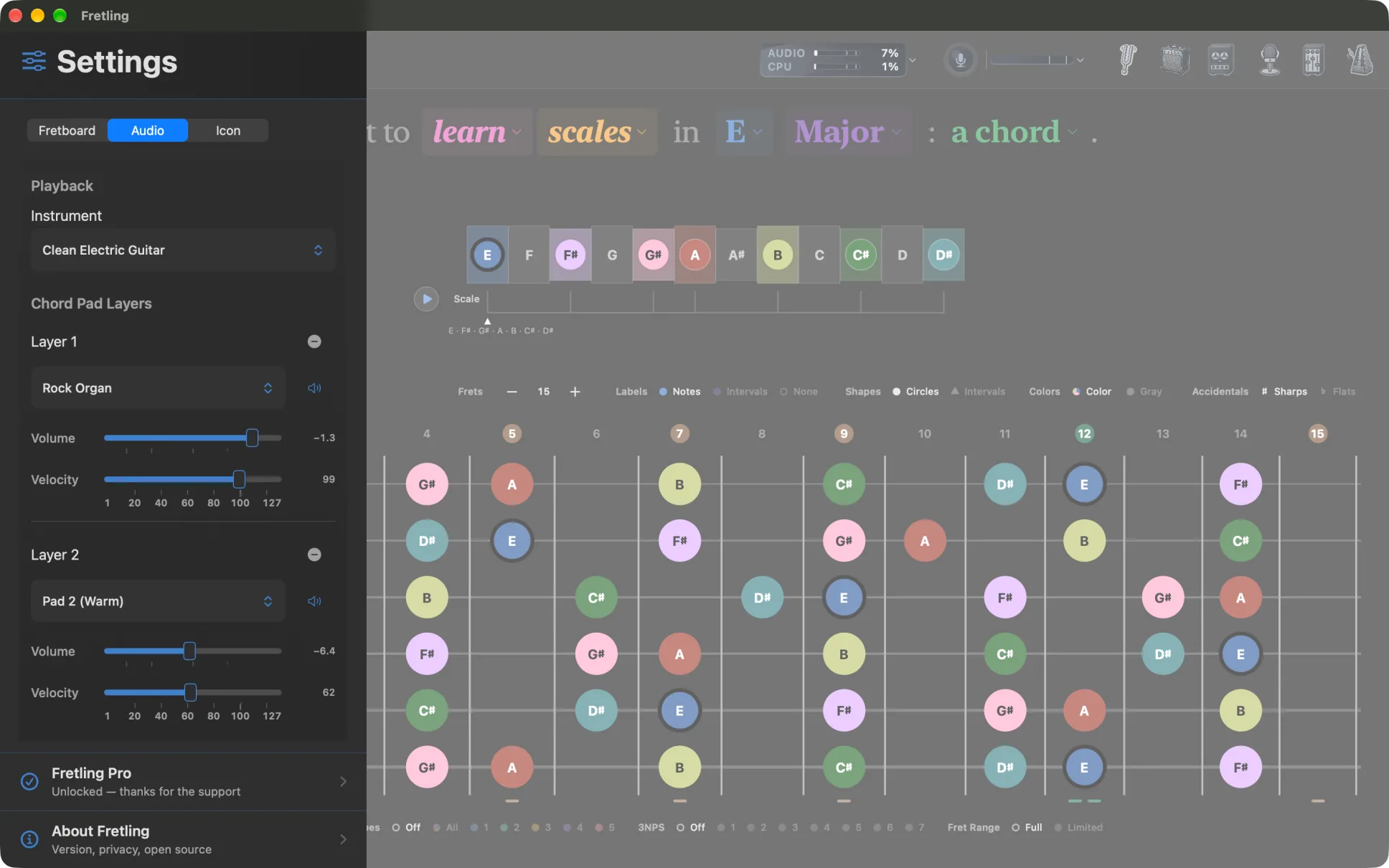
Playback
| Setting | Options | Description |
|---|---|---|
| Instrument | Acoustic Piano, Acoustic Guitar (Nylon), Acoustic Guitar (Steel) — the default, Jazz Guitar, Clean Electric Guitar, Sine Wave | The voice used when you tap notes on the neck. The four guitars are modeled — each note is a string computed as it plays — and Sine Wave is synthesized. The piano is recorded samples, from two sources bundled with the app — the FreePats General MIDI set, which is public domain, and GeneralUser GS. Both are credited in About. |
Chord Pad Layers
Chords can be voiced by stacking up to three instruments, which is how you get a pad behind a chord rather than one flat sample. Add Layer adds one, up to that maximum; it dims at three, and a layer's remove button dims while it is the only one left.
Each layer carries four controls of its own:
- Instrument — one of seventeen voices chosen for stacking, in five sections of the menu: Pads — Pad 1 (New Age), Pad 2 (Warm), Pad 3 (Polysynth), Pad 4 (Choir), Pad 5 (Bowed); Strings — String Ensemble 1 and 2, Synth Strings 1 and 2; Voices — Choir Aahs, Voice Oohs; Organs — Church Organ, Drawbar Organ, Rock Organ; Pianos — Acoustic Piano, and Electric Piano 1 and 2.
- Mute — silences that layer without removing it, so you can hear what it was contributing.
- Volume — that layer's share of the stack.
- Velocity — 1 to 127, default 100. This is not a second volume: a velocity picks which recorded sample the layer plays, so it changes the timbre of the voice as well as its level, the way hitting a piano key harder does.
A fresh install starts with three layers already stacked — Pad 2 (Warm) at 1.0, String Ensemble 1 at 0.55, and Choir Aahs at 0.4. A layer you add yourself starts as Pad 2 (Warm) at 0.5. Double-click any slider to put it back to the default for that slot.
Humanize
One slider in a group of its own below the layers, from None to ±24, default ±8. It varies each note's velocity a little so repeated chords don't sound machine-stamped. It belongs to the pad as a whole rather than to one layer, which is why it sits once underneath the list: it perturbs every note the layers play.
Layers apply to chord playback — the Chord chip beside the timeline and Chord Atlas previews. Tapping single notes always uses the Instrument setting above.
Icon tab
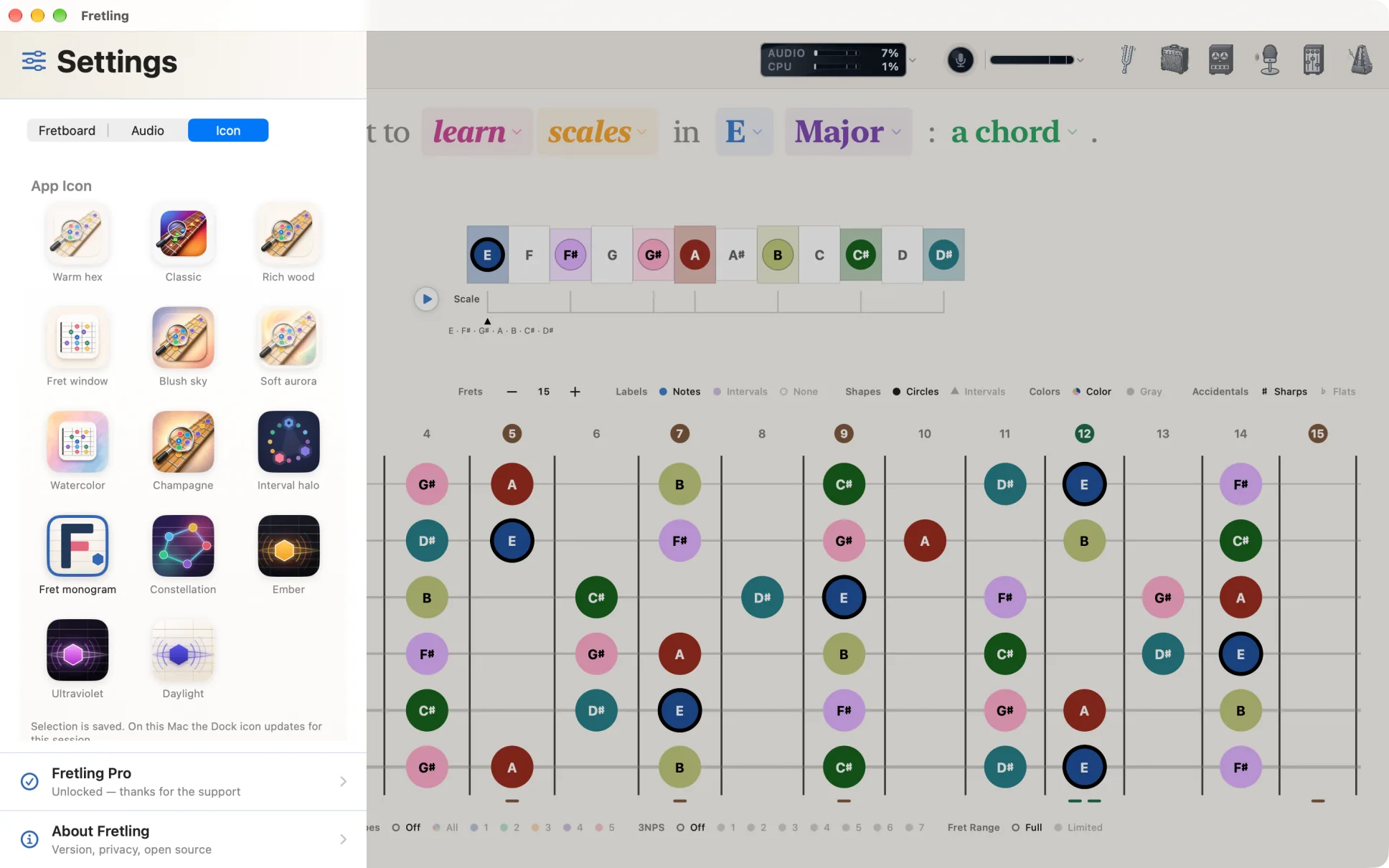
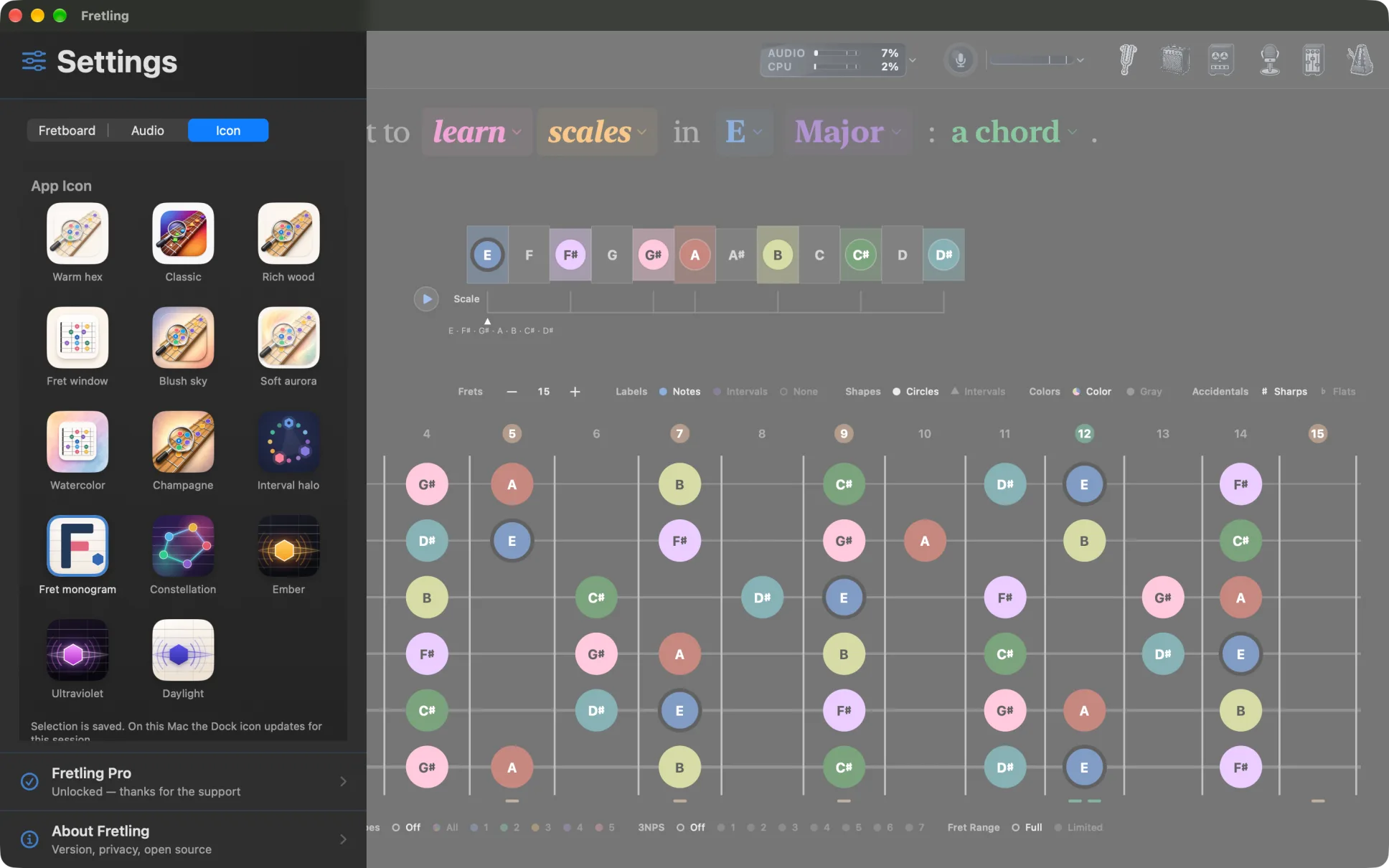
Fretling ships fourteen app icons; pick one and the home screen or Dock icon changes. The choices are Warm hex, Classic, Rich wood, Fret window, Blush sky, Soft aurora, Watercolor, Champagne, Interval halo, Fret monogram, Constellation, Ember, Ultraviolet, and Daylight. Each is shown as a preview tile before you commit.
The Fretling Pro row
Above About, a Fretling Pro row is the only way into the unlock sheet. It reads its own state rather than always saying the same thing:
- Unlocked — thanks for the support, once you have bought it.
- Trial — N days left, while the free trial is running, counting down.
- The amp, the looper, precision tuning, and more, otherwise — what the row is offering, rather than a bare price.
Restore Purchases lives on the unlock sheet itself, not in this row, so a new Mac or iPad restores from the same place the purchase happens.
About and tips
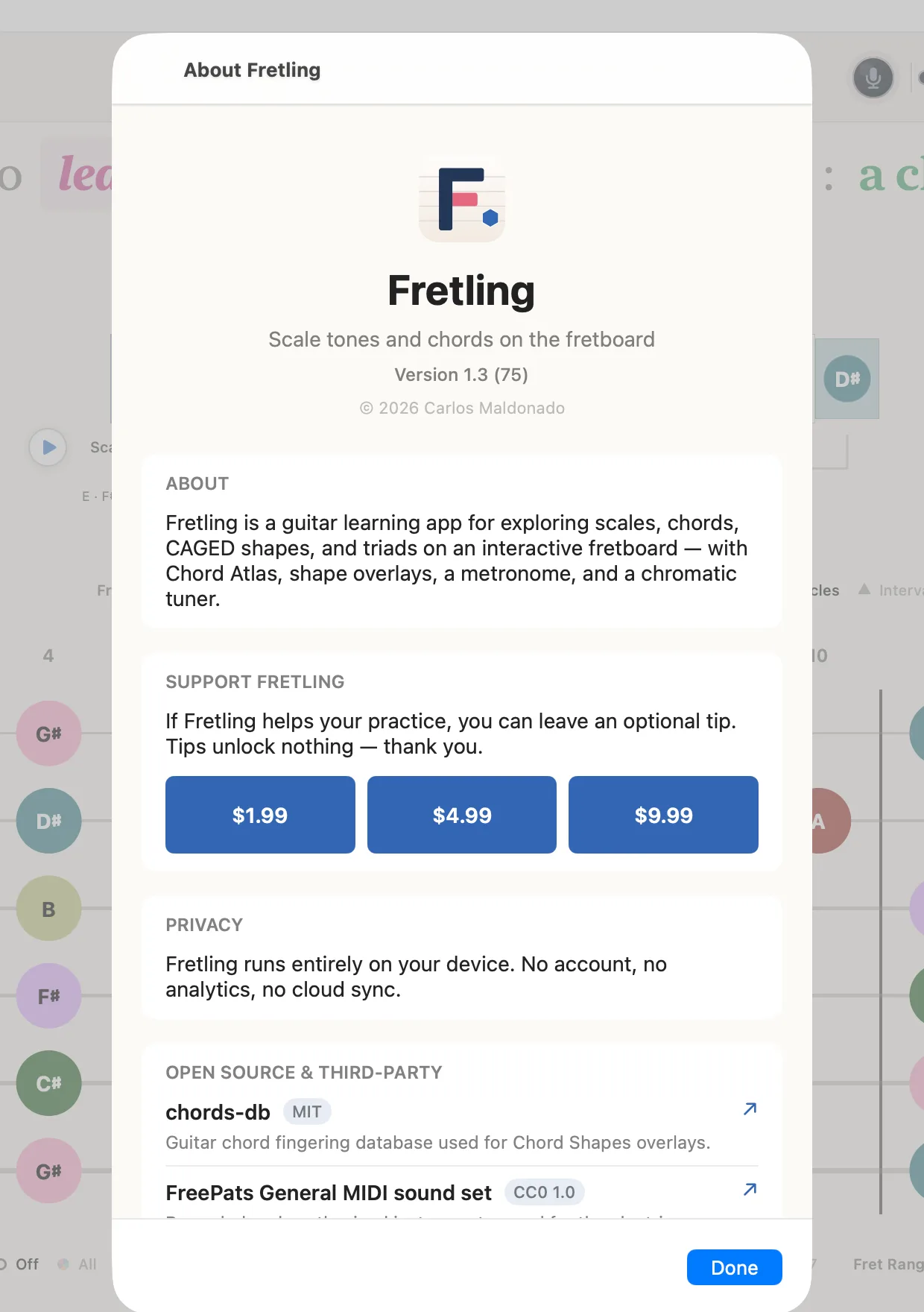
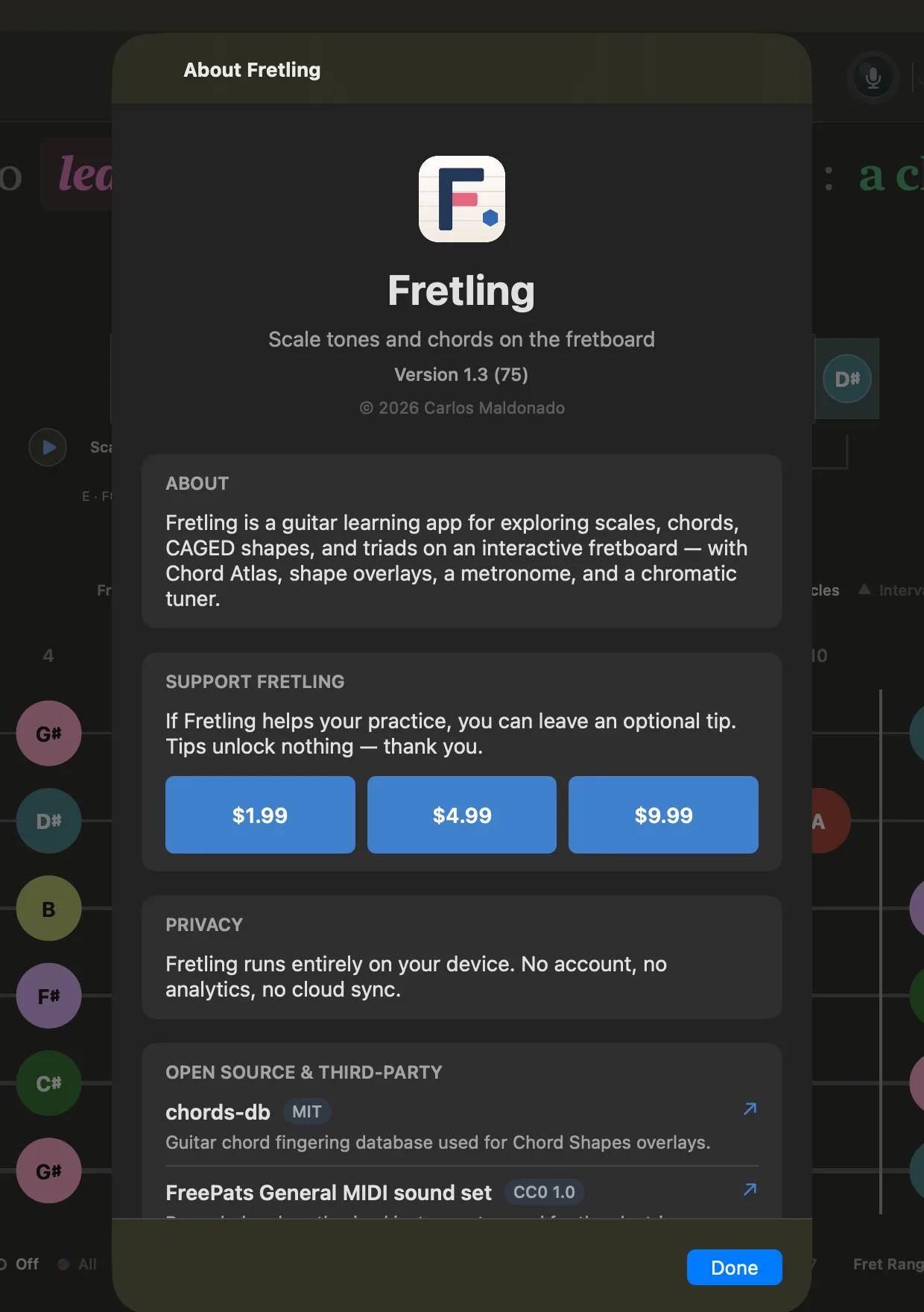
At the bottom of the sidebar, About Fretling opens a screen with the version and build number, a plain-language privacy summary, and seven credits for the open-source work Fretling is built on: the chord fingering database, the two sound sources behind instrument playback (the FreePats General MIDI set and GeneralUser GS), the recorded drum kit behind the Drums pack, and the Neural Amp Modeler engine with its two dependencies.
The About screen also holds an optional tip jar. Tips are ordinary in-app purchases handled by Apple, in three sizes. They unlock nothing — every feature is available whether or not you ever tip.